Sometimes McGraw Hill Connect freezes or refuses to submit an assignment. This may happen because of technical issues, browser incompatibility, or because you are using the platform on a phone. If none of these applies, contact McGraw Hill Connect student support by raising a ticket, chatting, or calling (800) 331-5094 in the US and Canada.
This blog details:
- When McGraw Hill Connect won’t submit an assignment
- What to do when something like this happens
- How to avoid these problems in the future
If the submission problem is eating into your deadline, our McGraw Hill Connect experts can complete and submit the assignment for you, with an A/B grade guarantee.
Key Takeaways: What to Do When McGraw Hill Connect Won’t Submit an Assignment
- McGraw Hill Connect assignments may fail to submit because of browser incompatibility, outdated cache, incorrect file formats, or expired deadlines.
- Clicking Save and Exit saves your answers but does not submit them. Always click Submit and check the confirmation screen or assignment report.
- Refresh the page, clear your browser cache, try a supported browser, and check your device’s date and time settings to resolve common submission problems.
- If an assignment appears submitted in Connect but not in Canvas, check the submission report, allow time for grade synchronization, and contact your instructor if the issue persists.
- Capture screenshots showing the error and date or time, inform your instructor promptly, and contact McGraw Hill technical support if troubleshooting does not resolve the issue.
What Do I Do If McGraw Hill Connect Won’t Submit My Assignment: 4 Steps to Fix It
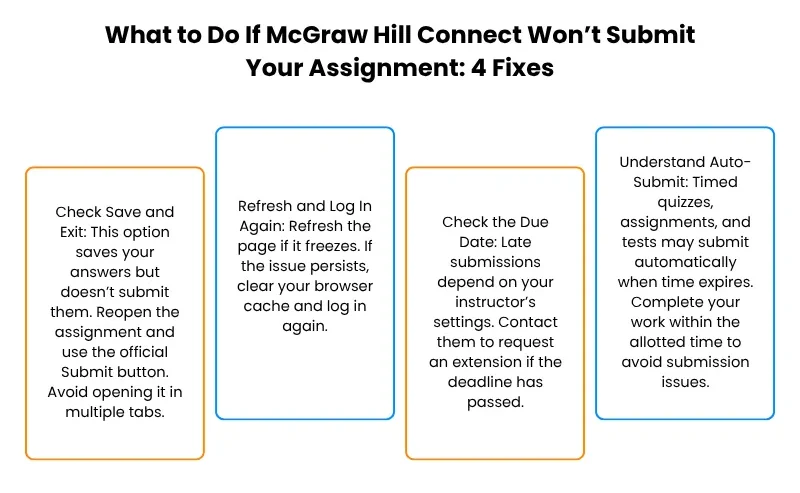
When working with McGraw Hill Connect, if you fail to submit an assignment, you can try these 4 ways:
The Save and Exit Option
When working with non-timed assignments, if you click on “Save and Exit”, your McGraw Hill Connect answers will be saved but not submitted. Save and Exit stores your answers without submitting them. If this happens, return to the assignment and click Submit. Also make sure you don’t open the same assignment in multiple tabs and that you use the platform’s own Submit button.
Refresh the Page and Log In Again
Sometimes the page freezes, and refreshing it can get you unstuck. If it’s still not resolved, log back in. Before signing in, make sure to clear the cache properly.
Submission Beyond Due Date
If the submission date has passed, you won’t be able to submit the assignment. Whether or not an assignment will be accepted after the due date entirely depends on the instructor’s settings. To submit an assignment beyond its due date, you will need to connect with the instructor and ask for an extension. Failing to meet the deadline may result in an automatic grade reduction.
Auto-Submit Setting
For timed quizzes, assignments, and tests, the task will be automatically submitted when time expires. You cannot pause it or resubmit it. So, when working on a timed assignment, complete it within the time limit to avoid a McGraw Hill Connect assignment submission error.
Is the Connect portal closing in a few hours? Mark your order as “URGENT” in the signup form, and a US-based expert will take it on before the deadline.
Why Is the Submit Button Not Working on McGraw Hill Connect? Common Causes & Fixes
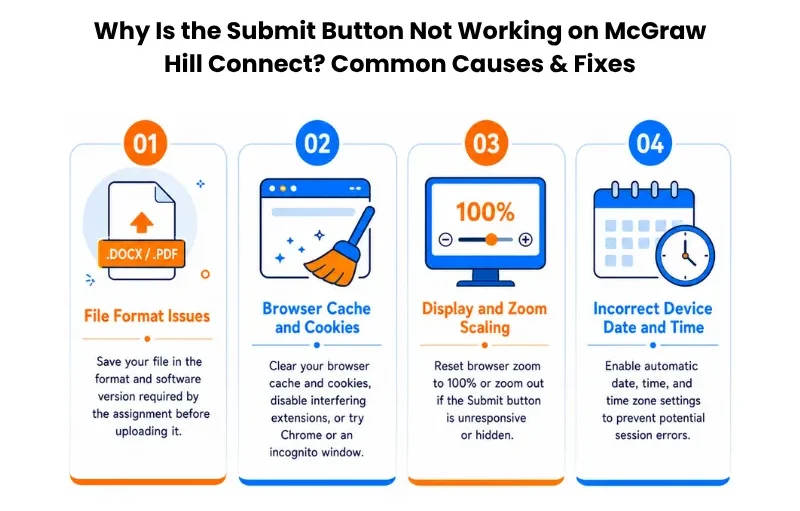
It can happen because of browser settings, file compatibility, or assignment constraints. Here’s how to tackle it when McGraw Hill Connect won’t submit an assignment because the submit button doesn’t work:
File Format Issues (Keyboarding/Assignments):
If you are uploading a .docx or project file and the submit button won’t activate, check the software version used to save it. For instance, some modules require files saved in a particular Word version, so check the file format and version your module requires.
Browser Cache and Cookies:
Outdated cache, cookies, or tracking blockers can freeze interactive scripts on the page. Refresh the page, clear your browser cache/cookies, or try switching to a private/incognito window or an alternate browser like Google Chrome.
Display and Zoom Scaling:
UI glitches or missing/unclickable buttons can happen if your browser zoom is set too high or your screen resolution is misaligned. Try zooming out (Ctrl + – or Cmd + -) or resetting your browser zoom to 100%.
Device Date and Time:
If your computer’s or phone’s clock isn’t synced with automatic network time, it may cause these issues. An incorrect device time zone or clock setting can break secure session tokens required to post data to McGraw Hill’s servers.
What Do I Do if McGraw Hill Connect Won’t Submit My Assignment?
Connect assignment not submitting? This may be for several reasons. Let’s check out the issues in detail:
- A McGraw Hill assignment may not submit if you click on “Save & Exit.” Many students click Save & Exit and forget to click the Submit button. Until you click Submit, the assignment won’t be submitted; only your answers will be saved.
- McGraw Hill Connect does not support every kind of browser. If you are using a browser that is not supported, you might come across this challenge.
- Before working on an assignment, check the due date and number of attempts. If you have used all attempts or the due date has passed, you cannot submit the assignment.
- If some McGraw Hill Connect assignment technical issues occur, you will not be able to submit the assignment. In that case, discuss it with your peers, and if it happens to multiple people, email your instructor with evidence. Make sure the screenshot has a visible time and date.
How Do I Submit an Assignment on McGraw Hill Connect?
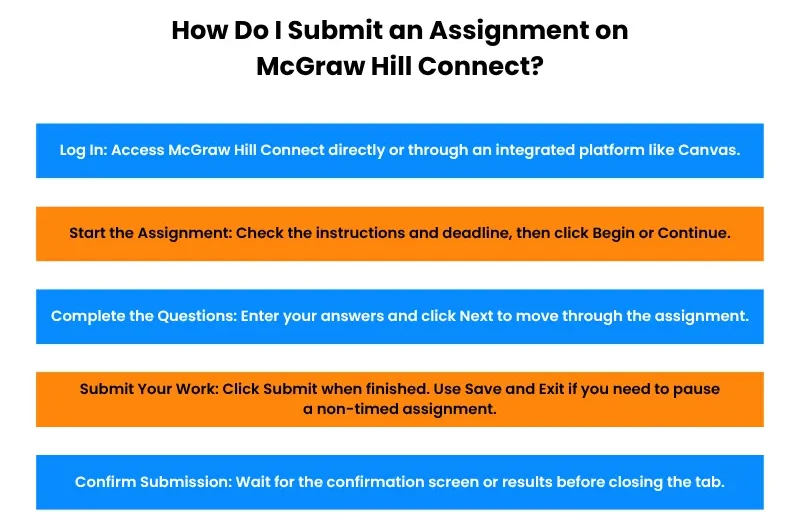
Since it is a digital learning platform, you need to learn how to navigate it well, not just how to get McGraw Hill Connect answers, to avoid these challenges. So, let’s learn how to submit assignments properly here.
- Step 1: You need to log in to your platform, either via McGraw Hill Connect coursework or via an integrated online platform such as Canvas.
- Step 2: Review the instructions and the submission date and time. Accordingly, start working on your assignment by choosing Begin or Continue.
- Step 3: You will be redirected to the page to work on your assignment. To complete the assignment, read each question, enter the correct answer, and click on Next to move to the next one.
- Step 4: Once you are done with the assignment, click on Submit. If you need to take a break in between, click on Save and Exit. For timed assignments, we advise not to leave the assignment midway, as it will be automatically submitted when the time is up.
- Step 5: Do not close the tab without viewing results or the confirmation screen. If your instructor has not enabled the immediate feedback option, you may not receive the feedback immediately.
To verify the assignment was submitted properly, return to your course homepage and look for “See Report” beside the assignment. You can also check Menu → Results → your section to view submitted attempts.
If you can’t complete or submit an assignment for any subject, such as accounting or math, you can get McGraw Hill accounting answers help or math help, depending on your needs. US-based subject experts familiar with the LMS can help you manage coursework, submit assignments on time, meet deadlines, and take exams to earn top scores in your course.
McGraw Hill Connect Assignment Submitted but Not Showing in Canvas
If your assignment shows as submitted on Connect but not in Canvas, this might be a case of a Canvas–Connect link issue, for which you will need to inform your instructor to do a manual synchronization.
- Open your Connect course and confirm that your assignment is submitted. Check the report to view the score and number of attempts.
- Once done, refresh the page and allow time for the auto-grade sync between Connect and Canvas.
- If the grade still doesn’t appear in Canvas, launch the assignment using the Connect assignment link inside Canvas. Often, instructions specify that completing an assignment directly in Connect may cause grade-sync problems.
If the problem persists, inform your instructor so they can determine whether the Connect section is paired with Canvas properly or not. US-based experts with LMS knowledge can handle your coursework, submit on time, and take exams, or you get top grades or your money back.
How to Contact McGraw Hill Technical Support?
For McGraw Hill Connect assignment technical issues, contact the support team. To connect with them, use McGraw Hill’s Connect support page.
When reporting the issue, include your coursework details (course name, assignment name), the issue, the approximate time it occurred, the browser or device you are using, and a screenshot as evidence. This will help the team quickly understand and troubleshoot your issues.
Why Is My McGraw Hill Connect Assignment Stuck on Submitting?
If you see Submitting, wait briefly and avoid clicking Submit repeatedly or closing the page immediately. The Connect assignment can get stuck on Submitting for several reasons; try refreshing the page, clearing your browser cache, or using another browser to rule out technical issues. If it persists, contact your instructor, TA, or the support team.
When you pay someone to take my online class, academic experts can help you complete tasks beforehand so you can meet deadlines.
What Browser Works Best for McGraw Hill Connect?
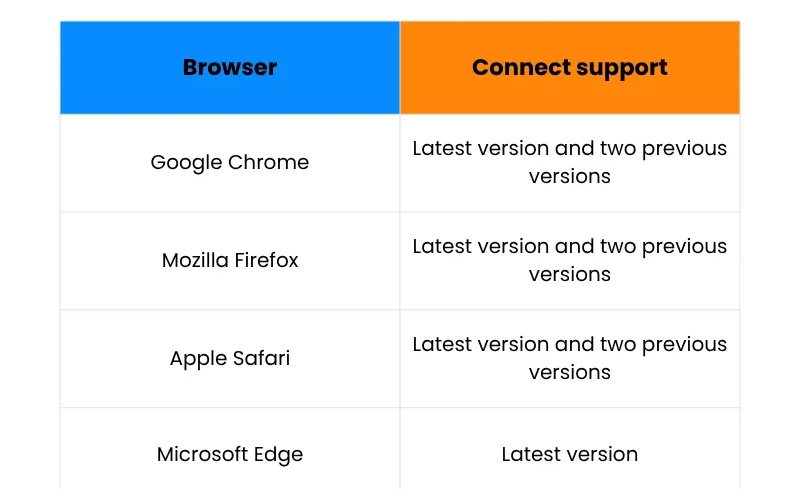
For McGraw Hill Connect assignments, Google Chrome is the most widely recommended option. If you are working on a proctored question-bank assignment, use Chrome on your desktop. Connect also supports Firefox, Apple Safari, and the latest version of Edge.
Can You Submit McGraw Hill Connect Assignments on a Phone or Tablet?
Yes, SmartBook assignments can be completed on a phone or tablet through the ReadAnywhere app, and Connect can be accessed in a mobile browser. For most other assignment types and all proctored assignments, use a desktop.
How to Take a Screenshot Showing Date and Time?
To take a screenshot with the date and time, capture the full screen. When taking a screenshot as evidence, include the error message. If you are using Windows, you can press Windows + Print Screen or Windows + Shift + S. For Mac, press Shift + Command + 3. If you are using an Android phone, you need to press Power + Volume Down together.
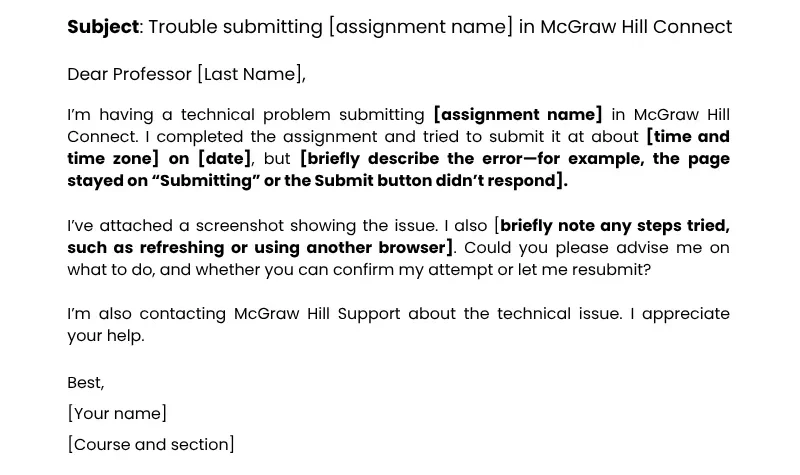
What to Email a Professor When an Assignment Glitches?
Inform your professor about the assignment glitch as soon as it happens, especially if the deadline is near. This will help you save time. When you inform them, keep the message brief and factual. Include the following, and attach a screenshot or other evidence if you have it:
- explain what you were submitting,
- what went wrong,
- when it happened, and
- what you’ve tried.
Here’s the email template for your reference:
An Expert Tip: Always keep the confirmation or a copy of the conversation; this will help you track it and use it as a reference if the McGraw Hill Support team requires it.
Need help before the professor replies? Chat with us 24/7 — average response time under 30 seconds.
How to Clear Chrome and Firefox Cache for McGraw Hill?
McGraw Hill itself recommends that students clear the cache to troubleshoot technical issues. Here’s how to clear the cache in different browsers:
Chrome
Open Chrome and click the 3 dots in the top-right corner. Click History, and then click “Open History Page.” There, you will find the option to delete browsing data; after you click it, a pop-up will appear. Choose All time or a recent time range.
Make sure to select cached images and files. You can leave Cookies and other site data unchecked initially to avoid signing out of websites.
After this, sign in again to use the platform.
Mozilla Firefox
First, open Menu (☰) → Settings → Privacy & Security. Under Cookies and Site Data or Browsing data, select Clear Data. There, you will need to select Temporary cached files and pages; leave cookies unchecked if you want to stay signed in. Select Clear, then reopen Connect.
If it still doesn’t work, you can temporarily turn off your extensions, as McGraw Hill Connect notes they might interfere with its products.
Conclusion
McGraw Hill Connect is an online learning platform that can be challenging at times. When McGraw Hill Connect won’t submit an assignment, try the ideas shared here, and if the problem persists, inform your instructor. However, before you try any of the ideas, if you’re in the middle of an assignment, save your work. We hope this article helps you understand the platform better and improve your performance. If Connect keeps failing you, get a free quote today. McGraw Hill homework help starts at $50, and your first order is 50% off.

- What to Do When McGraw Hill Connect Won’t Submit an Assignment? - October 15, 2026
- Top 5 Common Mistakes Students Make On MyStatLab - September 1, 2026
- How Connect Integrates with Canvas or Blackboard LMSs [LTI Integration] - March 10, 2026