
It’s 11:40 p.m. Your paper is due at midnight, and you can’t find the submit button. Sound familiar? The learning platform your school uses can make or break your week, and you rarely get a say in which one.
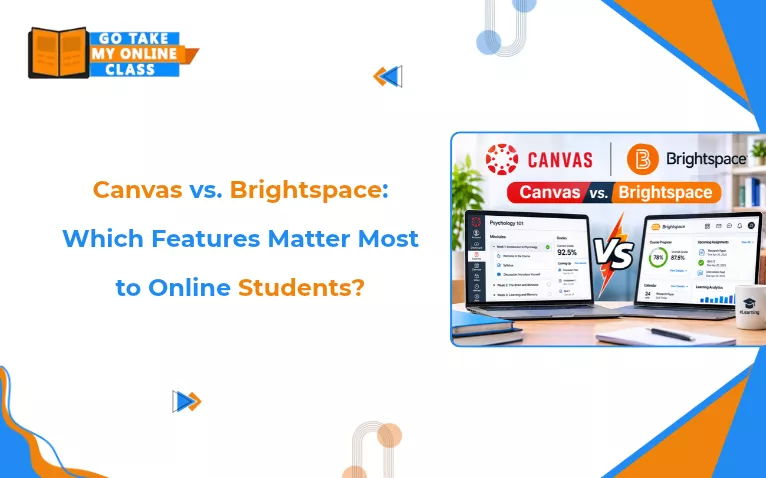
So here is the quick answer. Canvas is easier to pick up. Brightspace gives you more personalization and progress tracking. Most online students do fine on either one.
This guide breaks down Canvas vs. Brightspace in plain language. We focus on the Canvas LMS student features and Brightspace tools you will actually use, like deadlines, mobile apps, discussions, and accessibility. By the end, you will know what to expect and how to get comfortable fast.
Key Takeaways: Canvas vs. Brightspace At a Glance
- Canvas is easier to learn; Brightspace is easier to personalize. Many students get comfortable in Canvas quickly. Brightspace can take longer but offers guided paths and detailed progress tracking.
- Mobile apps cover the basics on both. The Canvas Student app is quick for grades and to-dos. Brightspace Pulse gathers deadlines into one feed. Use a browser for big quizzes and uploads.
- Accessibility is strong on both platforms. Course design (captions, alt text, tagged documents) matters more than the platform itself. Test with your own assistive tools early in the term.
- Moving to Brightspace changes the layout, not your classes. Expect a top navigation bar, a Content section instead of Modules, and release rules that unlock lessons as you progress. Reset your notifications in week one.
- Discussions feel different. Canvas is simple and easy to read. Brightspace adds more structure, such as post ratings and rules set by your instructor.
- Focus on everyday features. Clear navigation, deadline tracking, grade visibility, mobile access, and reliable support matter most.
- There is no single winner. Your school usually decides, so the best move is to learn your platform well in the first week.
What Are the Main Differences between Canvas and Brightspace from an Online Student’s Point of View?
Canvas feels simpler. Brightspace feels more customized. That is the short version.
With Canvas, you log in, see your courses, and start clicking. The layout is clean, and most students find their way around quickly. Brightspace has more going on under the hood. Your instructor can release content based on your progress, track your mastery, and send automated reminders. That can feel like extra help or extra clutter, depending on how the course is built.
| Comparison Parameter | Canvas (Instructure) | Brightspace (D2L) |
|---|---|---|
| Developer / Owner | Instructure | D2L Corporation |
| Target Audience | Educational institutions, universities, schools, training providers, corporate training environments, businesses, employees, and organizations requiring fast course deployment. | Higher education, K-12, associations, training organizations, enterprises, healthcare, manufacturing, non-profits, retail, technology, and government organizations. Particularly suitable for competency-based and data-driven training. |
| Key Strengths & Features | Clean interface, native accessibility features, structured modules, discussions, grading tools, analytics dashboards, mobile access, intuitive learner navigation, third-party integrations, collaborative workspace, Open API, audio/video messaging, customizable user profiles, IgniteAI features (some still in preview), and automation features. | Integrated teaching, assessment, analytics, credentialing, ePortfolio, assignment grader, learning repository, video assignments, customizable user profiles, D2L Lumi AI (add-on), adaptive learning, conditional release rules, intelligent agents, native accessibility, advanced administrative controls, automation workflows, security, and advanced reporting. |
| Ease of Use & UI | Very intuitive, clean, modern, and beginner-friendly. Offers straightforward navigation across desktop and mobile, faster initial setup, and easier ongoing management. However, reliance on third-party integrations for credentialing and content authoring can create a fragmented experience. | Powerful, modern, customizable, and structured platform offering a unified, data-driven experience. Helps reduce administrative complexity. However, advanced controls and extensive features can make initial navigation more complex, requiring additional onboarding and training. |
| Course Creation & Customization | Supports module organization with prerequisites and completion requirements, lesson pages, video uploads, discussions, quizzes, assignments, and reusable templates. Offers moderate branding, themes, and layout adjustments, but deep interface customization and flexible course design are limited without add-ons. | Advanced content-building environment supporting adaptive learning paths, performance-based progression, conditional content release, mastery-based learning, and personalized learning experiences. Offers Creator+ add-on, accessible and shareable learning materials, role-based dashboards, and flexible navigation structures. |
| Support Options | 24/7 Tier 1 support, online support, video tutorials, and institutional support options. | Onboarding, optimization, transformation services, customer success, change management consulting, migration support, community, D2L Academy, knowledge base, online support, video tutorials, and enterprise training. |
| Pricing Model | Enterprise, quote-based pricing across three tiers (Core, Plus, Next). Free access/options for individual instructors; institutional deployments require paid subscriptions. | Custom enterprise, quote-based pricing. Costs depend on learner numbers, integrations, implementation services, and support requirements. Onboarding and training are available as add-on services. |
| Overall Positioning | Better suited to organizations prioritizing ease of use, faster deployment, straightforward course management, and a familiar learning experience. | Better suited to organizations prioritizing advanced personalization, adaptive learning, competency-based education, automation, and comprehensive learning analytics. |
The table covers the full picture. For a student, three rows matter most: ease of use, course layout, and support. Skim those first.
Brightspace Pulse vs Canvas Student App for Online Classes
Both apps do the basics well. You can check grades, see due dates, and get alerts on your phone.
The Canvas Student app is quick and simple. It shows your to-do list, announcements, and grades in a few taps. It works well if you study on the go.
Brightspace Pulse puts your deadlines and updates in one feed. It is handy if you take several classes at once, since it pulls everything into a single timeline.
The biggest difference: the Canvas Student app lets you submit assignments and post in discussions, while Pulse is built for tracking and opens the browser when you need to submit work or take a quiz. Some quizzes and file uploads work better in a browser, so keep your laptop close for big tasks.
Canvas vs Brightspace for Students with Disabilities
Both platforms include built-in accessibility tools, and both aim to meet widely used accessibility standards. In practice, the experience depends on how your instructor builds the course. Captions, alt text, and clear headings make a big difference.
Canvas keeps its layout consistent. That helps students who rely on predictable navigation. Brightspace also offers strong accessibility features, plus role-based views and flexible settings.
If you need accommodations, talk to your school’s disability services office early. They can tell you what your campus has turned on.
My College Is Moving from Canvas to Brightspace. What Will Change for Me as a Student?
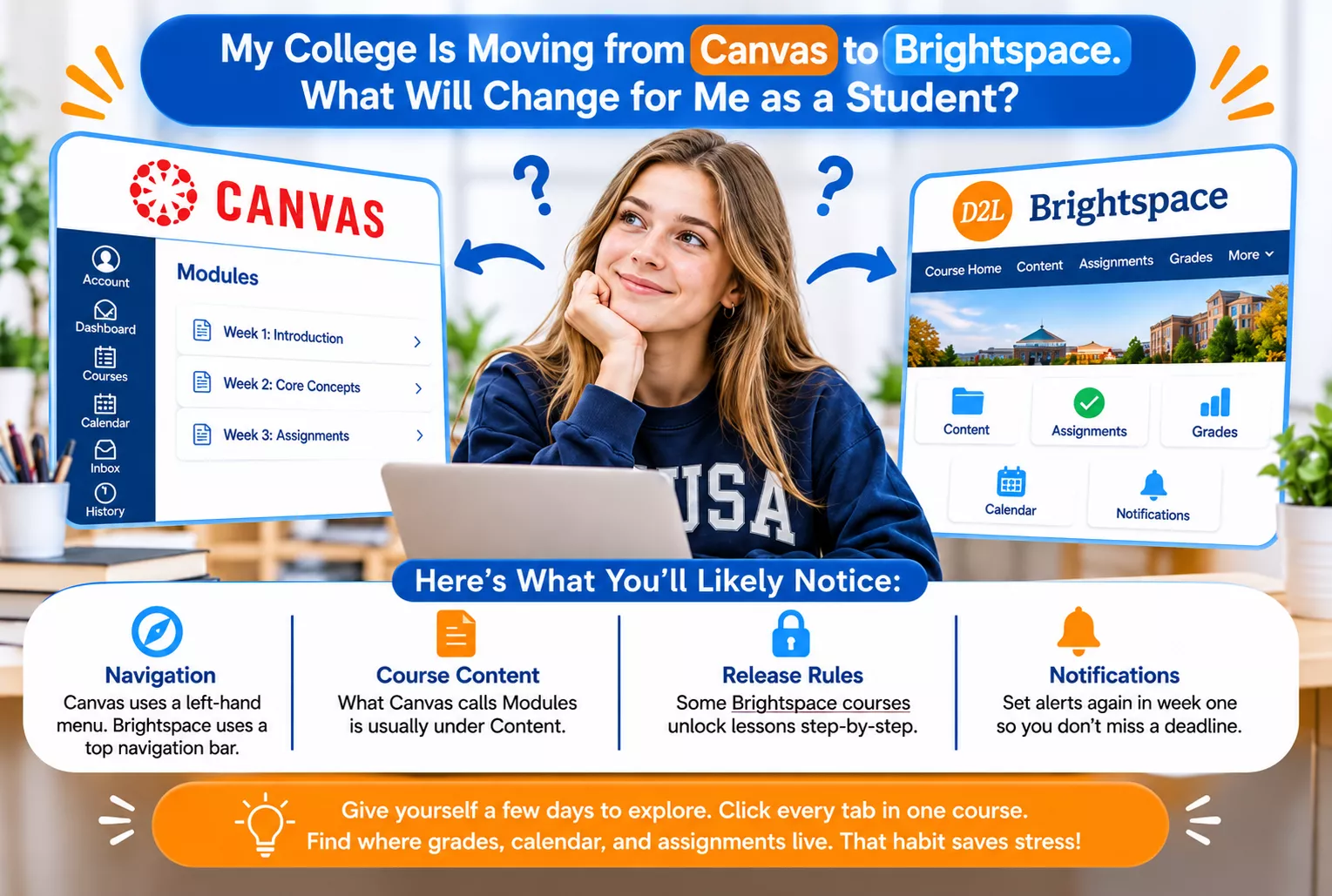
Mostly the layout and a few names. Your school handles the move, so ask your IT team how to access past courses, grades, and submissions.
Here is what you will likely notice:
- Navigation: Canvas uses a left-hand menu. Brightspace uses a top navigation bar and a course homepage with widgets.
- Course content: What Canvas calls Modules is usually found under Content in Brightspace.
- Release conditions: Brightspace can unlock lessons after you finish earlier ones. Canvas has similar Module requirements, but Brightspace instructors can set more conditions.
- Notifications: You will set alerts again. Do this in week one so you don’t miss a deadline.
Give yourself a few days to explore. Click every tab in one course. Find where grades, calendar, and assignments live. That small habit saves a lot of stress later.
If you hit a stubborn quiz or can’t find where something is submitted, resources like Brightspace Answers can help you understand how the platform works.
How Do Discussion Boards and Group Collaboration Compare between Canvas and Brightspace?
Both handle discussions well. The difference is in the feel.
Canvas discussions are easy to read. Replies are threaded, and you can reply with a click. Group spaces give each team its own area for files, pages, and discussions.
Brightspace discussions offer more structure. Instructors can set rules, rate posts, and require you to post before you see classmates’ replies. Group tools are solid, and they connect well to grading and reporting. Canvas offers a similar post-first setting, so it depends on your instructor.
For live sessions, many schools plug in video tools. Both systems support that. If your courses also use publisher courseware like McGraw Hill Connect, it helps to know how Connect integrates with Canvas or Blackboard.
Quick tip for group projects: agree on one place to share files from day one. Don’t spread work across email, chat, and the LMS.
Is Brightspace or Canvas Better for Students Who Use Screen Readers or Need Accessibility Support?
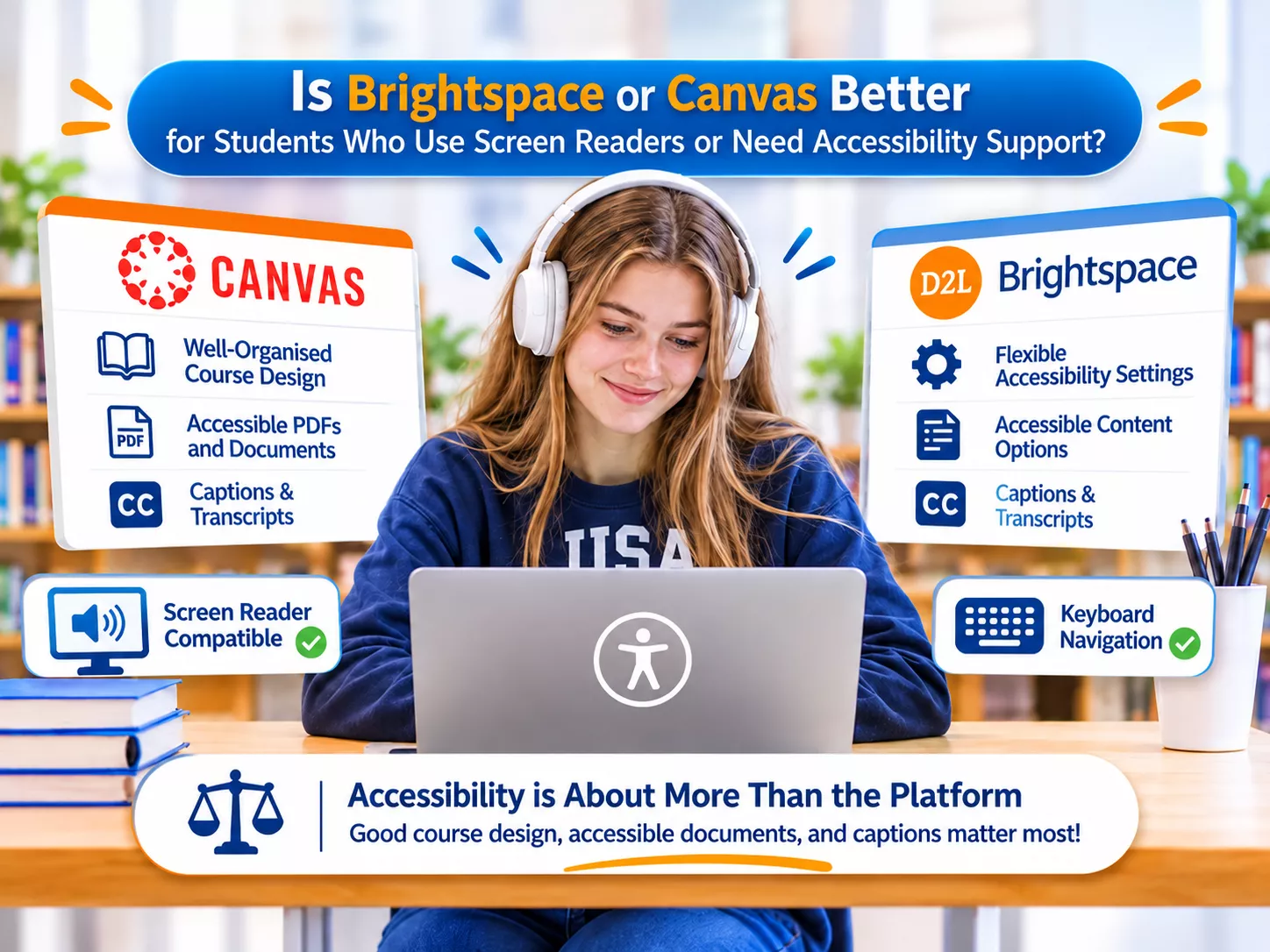
Neither one wins outright. Both work with screen readers, and both support keyboard navigation.
Here is what tends to matter more than the platform:
- Course design: Well-labeled headings and descriptive links help screen readers a lot.
- Documents: Tagged PDFs and accessible slides work far better than scanned pages.
- Media: Captions and transcripts should be standard.
Canvas is often praised for its predictable layout. Brightspace is praised for its flexibility and detailed settings. Which one feels better is personal.
Test it early, before coursework piles up. Ask your school if you can try a sample course with your own assistive tools. If something doesn’t work, report it. Your school’s disability services or IT team can look into it.
What LMS Features Should Online Students Care About Most When Comparing Canvas and Brightspace?
Focus on the features you will touch every day. Here are the best LMS features for online students:
- Clear navigation. You should find your next task in seconds.
- Deadline tracking. Look for a calendar, to-do list, and reminders that actually work.
- Grade visibility. You want to see scores and feedback without digging.
- Mobile access. A good app keeps you on track between classes.
- Accessibility support. Captions, screen reader support, and flexible settings matter for everyone.
- Communication tools. Easy messaging and discussion boards keep you connected.
- Reliable support. Know where to go when something breaks at 11 p.m.
For Canvas vs Brightspace ease of use, Canvas usually wins for new users. For Canvas vs Brightspace accessibility, both are strong, and results depend on your course. Brightspace pulls ahead if you like personalized paths and detailed progress tracking.
Also be honest about your workload. If work, family, and school pile up, it is normal to look for support. Some students explore options like take my online class for me services. Check your school’s academic integrity policy first, and make sure any help you use stays within the rules.
Final Thoughts
There is no single winner in Canvas vs. Brightspace. Canvas is friendly and fast to learn. Brightspace is flexible and rich in tracking tools. Both can support a great online experience when your instructor builds the course well.
Spend your first week exploring. Set up notifications, find your calendar, and test the mobile app. Do that, and either platform will work for you.
Frequently Asked Questions
Where do I submit assignments?
In Canvas, you can find assignments through the Assignments section or your course Modules. Open the assignment, click Start Assignment, upload your work, and then click Submit Assignment. In Brightspace, assignments are typically available under Assessments > Assignments or inside Content, depending on your course setup. Always check the submission confirmation to ensure your work was uploaded successfully.
How do quizzes and exams work?
Both Canvas and Brightspace allow students to take online quizzes and exams with multiple-choice, short-answer, and essay questions. Instructors can set time limits, deadlines, and attempt restrictions. Canvas quizzes are usually accessed through Quizzes, while Brightspace quizzes are usually under Assessments > Quizzes or linked from Content. For timed exams or longer assessments, use a laptop or desktop browser to avoid potential mobile app limitations.
Is Canvas or Brightspace easier for students to use?
Canvas is usually easier at first. Its layout is simple, and most students learn it fast. Brightspace can take a bit longer, but it rewards you with more personalization once you know your way around.
How to track assignment deadlines in Brightspace vs Canvas?
In Canvas, use the To-Do list and Calendar. Both show due dates across all your courses. In Brightspace, use the Calendar and the Pulse app, which gathers upcoming work in one place. In both, turn on notifications and sync your calendar with your phone. Deadlines only show up if your instructor has added due dates.
Which LMS is better for online college students Canvas or Brightspace?
It depends on how you learn. Pick Canvas if you want a quick, simple setup. Pick Brightspace if you like guided paths and detailed progress tracking. In most cases, your school makes the choice for you, so the best move is learning your platform well.
Can students get notifications for discussion replies and grade updates?
Yes, on both. In Canvas, set them under Account > Notifications. In Brightspace, open your profile menu and select Notifications. The Pulse app can also send alerts for announcements, content updates, and new grades.
What happens to old assignments and grades when a college changes its LMS?
It depends on what your school moves over. Your official final grades are kept in your school’s student records, not the LMS. Before the old system closes, ask your IT team how to access past course materials and submissions, and download any work you want to keep.