The ultimate academic nightmare is completing a three-hour accounting module only to realize the platform didn’t sync with your school’s portal.
This “digital friction” is a massive pain point for the over 70% of college students who now navigate hybrid learning environments. Studies show that technical errors and login fatigue are leading causes of missed deadlines and student anxiety.
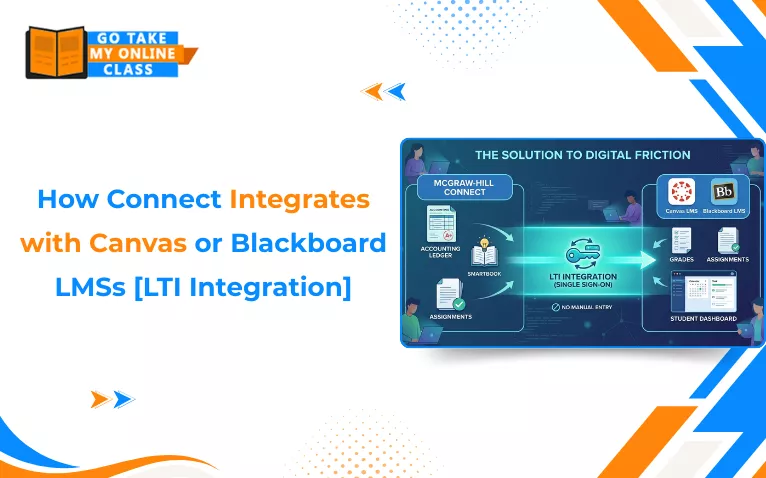
The solution is simple: McGraw-Hill Connect integrates with Canvas or Blackboard LMSs through Learning Tools Interoperability (LTI) to provide a single sign-on (SSO) experience.
This means your grades, assignments, and SmartBook readings are automatically synced to your dashboard, ensuring that your hard work is always recorded without the need for manual entry or multiple logins.
Key Takeaways: McGraw-Hill Connect Integration Explained
- McGraw-Hill Connect integrates with Canvas LMS and Blackboard Learn through LTI. This allows single sign-on (SSO) and automatic grade syncing.
- Once integrated, students can access assignments, SmartBook readings, and quizzes. Login directly inside the LMS dashboard without needing multiple logins.
- Instructors must properly enable the tool, pair the course, and deploy assignments. This ensures grade sync correctly between Connect and the LMS.
- Grades transfer securely to the LMS gradebook after submission. However, automatic sync settings must be turned on.
- Integration reduces login issues and technical errors. Students still need strong time management skills to handle SmartBook.
What Is McGraw-Hill Connect and Why Do Professors Use It?
McGraw-Hill Connect is a digital learning environment. It is designed to improve student outcomes through adaptive technology. Professors choose it because it offers specialized content. Furthermore, analytics help assess student’s knowlegde.
However, for the tool to be effective, it must be accessible. This is why the platform integrates with Canvas or Blackboard LMSs, allowing instructors to deploy McGraw-Hill Connect homework help resources directly within the course modules students use every day.
Understanding the Canvas + McGraw-Hill Connect Integration
When Connect integrates with Canvas, it creates a seamless bridge between the two platforms. This Canvas LMS integration ensures that students don’t have to leave the Canvas environment to access their adaptive learning tools. For many, this setup is the difference between a disorganized semester and academic success.

If you are wondering how to connect mcgraw hill connect to Canvas, the process involves a specific technical handshake.
- Enable McGraw Hill Connect in Canvas course navigation: The instructor must go to the course “Settings,” select the “Navigation” tab, and drag the McGraw-Hill tool into the active menu.
- Pairing the Course: Once enabled, the instructor clicks the link to sign into their Connect account and selects the specific section to “Pair” with the Canvas shell.
- Assignment Deployment: Finally, the instructor follows a step by step guide McGraw Hill Connect Canvas integration to “Deploy” assignments, making them visible in the Canvas assignments list and gradebook.
Once everything is set, you can start solving questions to get accurate McGraw Hill Connect Answers!
Understanding the Blackboard + McGraw-Hill Connect Integration
Blackboard users experience a similar level of efficiency. The Blackboard LMS Connect functionality utilizes the “Partner Cloud” or “LTI Advantage” protocol. When the software integrates with Canvas or Blackboard LMSs, it allows Blackboard to act as the primary “host,” meaning you can view your Connect syllabus and due dates without ever visiting an external website.

Connect Integrates with Canvas or Blackboard LMSs: At a Glance
While both platforms integrate with Canvas or Blackboard LMSs to provide a seamless learning experience, the technical “handshake” and user interface differ slightly. Here is how they stack up:
|
Feature |
Canvas Integration |
Blackboard Integration |
|
Primary Setup Path |
Course Settings > Navigation > Enable “McGraw Hill Connect” |
Course Content > Build Content > Partner Cloud / Content Market |
|
Pairing Method |
Single “Pair Course” button via the sidebar navigation link. |
“Begin” pairing via the Content Market tool selection. |
|
Assignment UI |
Assignments appear directly in Modules and the sidebar Assignments list. |
Assignments are typically organized into Content Folders or the Content Tab. |
|
Grade Sync Method |
Automatic LTI relay; manual “Sync” button found in the Connect LTIA tool. |
Automatic sync to Grade Center; managed via the “Deploy/Manage” settings. |
|
User Experience |
Streamlined sidebar access; feels like a “built-in” app. |
Folder-centric; feels like a linked “external partner” portal. |
|
Mobile Access |
High compatibility with the Canvas Student App. |
Accessible via the Blackboard App, though it often opens in a browser. |
Types of Assignments You’ll Encounter in McGraw-Hill Connect
When the platform integrates with Canvas or Blackboard LMSs, you will see a variety of assignment types in your feed. Evidently, most students search for Canvas quiz answers online for these integrated tasks, which include:
- SmartBook 2.0: Adaptive reading that adjusts to your knowledge level.
- Question Banks: Traditional assessments that test your core understanding.
- Proctored Exams: High-stakes tests that often use the platform’s lockdown features to prevent cheating on WileyPLUS, Canvas, or Blackboard.
- Application-Based Assignments: Interactive simulations that mimic real-world scenarios.
Common Student Struggles with McGraw-Hill Connect in Canvas & Blackboard
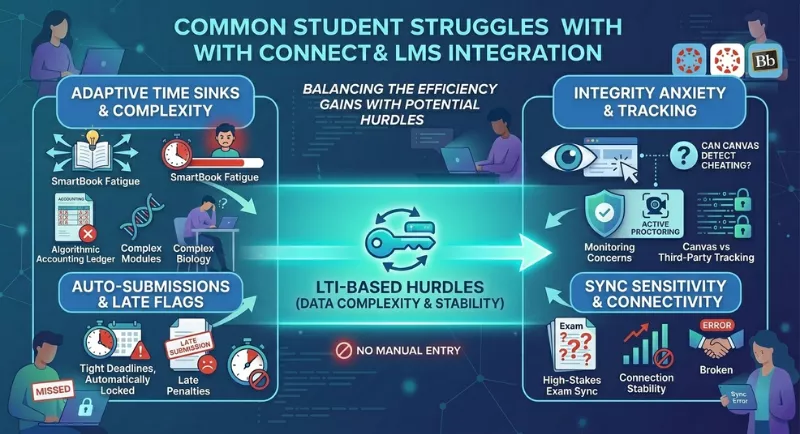
Even though the technology integrates with Canvas or Blackboard LMSs, students face several hurdles:
- Time-consuming SmartBook readings: These adaptive assignments can take hours to complete if you get questions wrong.
- Complex modules: Accounting, finance, and biology modules often feature algorithmic questions that change every time you attempt them. Also, students often look for Brightspace Answers as the McGraw Hill also integrates with other platforms like this.
- Tight deadlines: Auto-submission settings mean there is zero wiggle room for late work. Furthermore, if your instructor does allow you to submit late, it is marked so.
- Monitoring concerns: With the rise of remote testing, many wonder, Can Canvas detect cheating when using integrated third-party tools?
- Proctored Connect exams: These count heavily toward final grades and require a stable connection between the LMS and Connect.
Tips to Manage McGraw-Hill Connect Assignments Effectively

- Always Access via the LMS: Never log in through the McGraw-Hill homepage; always use the link inside Canvas or Blackboard to ensure your progress is recorded.
- Monitor the Sync: After finishing a task, check your LMS gradebook to confirm the score has moved over.
- Read Before Practicing: In SmartBook, read the highlighted passages before answering questions to finish the module faster.
- Use Academic Guides: Consult LMS integration documentation if you experience technical glitches during a sync.
When Self-Managing Connect Becomes Overwhelming
Sometimes, the sheer volume of work is too much. Whether it is a 100-page adaptive reading or a complex finance quiz, many students find themselves looking for a way to get answers for McGraw-Hill Connect. When the system integrates with Canvas or Blackboard LMSs, it tracks your activity closely, making it vital to have expert support if you are struggling.
What Options Do Students Have When Connect Becomes Unmanageable?
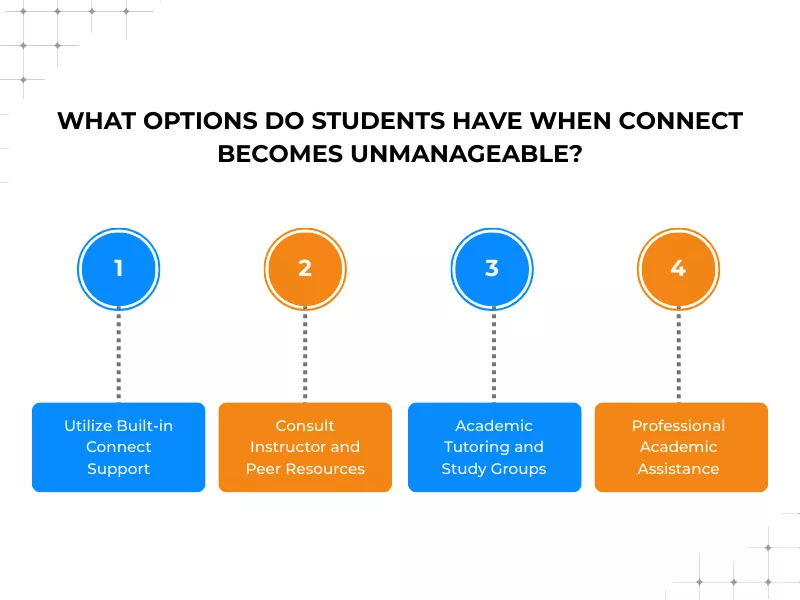
When the pressure mounts, students typically have four main paths to regain control of their grades:
Utilize Built-in Connect Support:
Before giving up, look at the “Hints” and “Guided Examples” within the Connect interface. Most modules offer “Learn About This” links that take you directly to the relevant textbook section.
Consult Instructor and Peer Resources:
Reach out to your professor or TA early. Often, they can reset an attempt or clarify a specific algorithmic question that is blocking your progress.
Academic Tutoring and Study Groups:
Joining a study group or using campus tutoring can help you master the material. However, this takes time, something many students working full-time do not have.
Professional Academic Assistance:
When the technology integrates with Canvas or Blackboard LMSs, it can feel like the platform is watching your every move. If you are drowning in coursework, hiring an expert is a reliable way to stay ahead.
If you decide to hire a professional to take my class for me online it is crucial to choose an online class help provider that understands the nuances of modern LTI connections. A reputable service can help you get answers for McGraw-Hill Connect while ensuring that your activity patterns remain consistent with standard student behavior.
What to Look for in a Reliable Academic Assistance Service?
If you decide to hire someone to take your online class, you need a provider that understands the technicalities of how Connect integrates with Canvas or Blackboard LMSs. Here is what you should look for in a reliable service:
LMS Technical Proficiency:
The provider must understand the technical “handshake” used when Connect integrates with Canvas or Blackboard LMSs. They should know how to access assignments via the LMS dashboard to ensure all activity and grades are recorded properly.
Subject Matter Expertise:
Whether it is high-level accounting, organic chemistry, or nursing, the person handling your work should be an expert in the field, not just a generalist.
Privacy and Security Knowledge:
Since modern platforms track metadata, the provider must prioritize your safety. They should be aware of how different platforms monitor activity and understand the technicalities behind questions like Can Moodle Detect Cheating or if Canvas logs IP addresses.
Grade Sync Verification:
A reliable partner should guarantee that the work they complete will sync correctly. They must verify that the score has successfully moved from the Connect platform to your school’s official Grade Center.
Experience with Proctored Environments:
Many integrated courses use third-party proctoring. A reliable assistant should understand the risks and technical requirements of these tools to ensure your academic integrity is never compromised.
Conclusion
Understanding how McGraw-Hill Connect integrates with Canvas or Blackboard LMSs is the first step toward a smoother semester. While the integration reduces the technical burden by providing SSO and grade syncing, the academic rigor of the assignments remains a challenge. By staying organized and seeking help when needed, you can ensure that the technology works for you, rather than against you.
Frequently Asked Questions
How do I set up Connect with Canvas?
The instructor must enable the McGraw-Hill Connect tool in the Canvas course “Navigation” settings and then pair the course using their Connect credentials.
Is McGraw-Hill Connect available for all subjects?
Yes, it covers a vast range of subjects, including business, sciences, mathematics, and the humanities.
How do I set up LTI Integration with Brightspace?
Similar to Canvas, you must go to the “Course Admin” in Brightspace, select “External Learning Tools,” and link your McGraw-Hill account.
Can Connect sync grades to Canvas automatically?
Yes, once the platform integrates with Canvas or Blackboard LMSs, instructors can enable “Grade Sync” so that scores transfer as soon as an assignment is completed.
Does Connect support Blackboard LMS integration?
Absolutely. Connect integrates with Canvas or Blackboard LMSs through the Blackboard Partner Cloud, allowing for seamless content deployment.
How does Connect handle user roles in Blackboard?
The LTI integration automatically recognizes who is an “Instructor” (allowing them to edit assignments) and who is a “Student” (allowing them to complete assignments).
Why do my Canvas assignments open in McGraw-Hill Connect?
This is because of the LTI bridge. The assignment lives on McGraw-Hill’s servers but is “framed” within your Canvas or Blackboard interface for a better user experience.
How does McGraw-Hill Connect sync grades to Canvas or Blackboard?
The system uses a “Relay” service. Once you submit your work, Connect sends a secure data packet to your LMS gradebook via the LTI protocol.
What happens if my Connect grades don’t appear in my LMS gradebook?
This usually happens if the “Automatic Sync” is turned off. You should contact your instructor to manually trigger a grade refresh.
Can I use McGraw-Hill Connect without a Canvas or Blackboard account?
Yes, you can log in directly to the McGraw-Hill website, but you won’t have the benefit of seeing your grades or assignments integrated with your school’s primary system.
What should I do if my grades still don’t sync after contacting my instructor?
You must document everything. Capture the gradebook in the external platform (showing the earned grade) and the LMS gradebook (showing it as empty or incorrect). Furthermore, keep a record of the emails sent to your instructor.
Related Blogs

How to Get Answers for McGraw Hill Connect: 2026 Comparison Guide

Canvas Quiz Answers Hack: Know The Best Practices

Shine In Your Classroom With The Best McGraw Hill Accounting Answers Help

Want To See My Profile — Check Now
- Top 5 Common Mistakes Students Make On MyStatLab - September 1, 2026
- How Connect Integrates with Canvas or Blackboard LMSs [LTI Integration] - March 10, 2026
- How to Get Answers for McGraw Hill Connect: 2026 Comparison Guide - January 21, 2026