
Can online classes detect tab switching? Well, the short answer is: Yes, in most cases, they can. However, the level of detection depends entirely on whether you are taking a standard quiz on a platform like Canvas or Moodle, or if you are using specialized proctoring software like Proctorio or Respondus LockDown Browser.
While a simple LMS lecture might not track your every move, modern exam environments log when a student leaves the test page. This is what “focus tracking” or “browser event logging” is all about. For students, understanding how online class tab switch detection works is essential to avoiding accidental flags for academic dishonesty.
In this guide, we will break down the tech behind tab detection, answer the most common questions about multiple monitors, and explain what your instructors can (and cannot) see when you’re logged into your online portal.
Key Takeaways: Tab Switching Detection in LMSs
- Even without a webcam, platforms like Canvas and Moodle automatically log “Focus Events,” recording the exact second you leave an exam page.
- Tools like Proctorio, Honorlock, and Respondus go beyond the browser to monitor your entire desktop, background apps, and even secondary monitors.
- Most systems use AI to “flag” suspicious movements—like tab switching or eye wandering, which are then sent to your instructor for a final manual review.
- Modern proctoring tools can detect if you have multiple screens plugged in or if you are using screen-sharing software like Discord or Zoom.
- A single accidental tab switch isn’t an automatic fail, but frequent exits from an exam window are the primary “red flag” for academic integrity investigations.
How Does Online Class Tab Switch Detection Work?
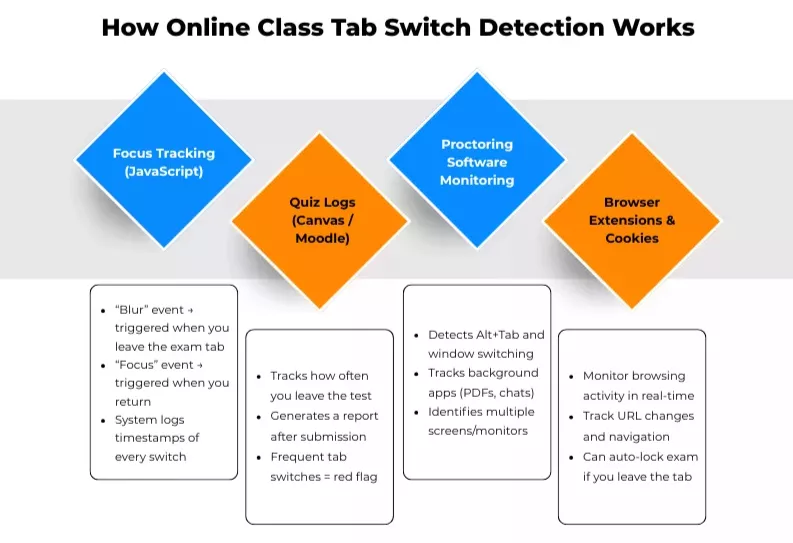
To understand online class tab switch detection, you first have to realize that your web browser (Chrome, Firefox, or Safari) is constantly talking to the website you are visiting. When you are taking online exams vs traditional exams on Canvas or Moodle, the website is essentially “asking” the browser if it is still the main focus of your attention.
Here is how the technology tracks your movements:
1. JavaScript and “Focus” Events
The primary way a website knows you’ve left is through a simple coding language called JavaScript. Most modern websites use “Focus Tracking” to improve user experience; for example, a video player might pause automatically if you switch tabs.
- The “Blur” Event: The moment you click away from your exam tab to open a new one (or even a different application like Calculator or Word), the browser triggers a “blur” event. This tells the website, “The user is no longer interacting with this window.”
- The “Focus” Event: When you click back into the exam, a “focus” event is triggered.
The LMS (Learning Management System) logs the exact timestamp of every “blur” and “focus” event, creating a timeline of how often you navigated away when you take an online class.
2. Canvas and Moodle “Quiz Logs.”
If you are wondering, “Can online classes detect tab switching without special software?” the answer is a resounding yes. Platforms like Canvas have a feature called “Quiz Logs.”
While your teacher isn’t watching you in real-time, the system generates a report after you submit the test. If a student’s log shows they “stopped viewing the quiz” 15 times during a 30-minute exam, it serves as a major red flag for the instructor. This is how Canvas can detect cheating in exams.
3. Operating System Level Monitoring
Standard browsers can only track what happens inside the browser. However, online proctoring tab detection goes much deeper. Software like Proctorio, Respondus, or Honorlock extension installs itself with higher permissions on your computer.
These tools don’t just watch the browser; they watch your entire Operating System (OS). They can detect:
- Alt Tab Detection in Online Classes: Every time you try to switch windows using keyboard shortcuts to get answers.
- Background Processes: If you have a messaging app or a “cheat sheet” PDF open in the background.
- Multiple Monitors: They can detect if a second video signal is being sent to another screen.
4. Browser Extensions and Cookies
Some schools require you to install a specific browser extension. These extensions act as “eyes” for the teacher, monitoring your URL bar and history. In this scenario, online class tab switch detection is nearly instantaneous. This means the software can lock you out of the exam the second you try to navigate away.
Can Online Classes Detect Tab Switching: Detection via Learning Management Systems (LMS)
While many students believe they are safe as long as they aren’t using a webcam, most Learning Management Systems (LMS) have built-in tracking features. Even without extra proctoring software tab monitoring, these platforms act as a digital paper trail for your instructors.
Can Canvas Detect Tab Switching via Quiz Logs?

Yes, it can. This is the most common way of flagging online cheating. Canvas uses a feature called “Quiz Logs” to track student activity. If you are wondering, “can canvas detect tab change?” the answer lies in the timestamps.
When an instructor views your Quiz Log, they see a minute-by-minute breakdown of your session. If you switch to another tab to look up an answer, Canvas will generate a log entry that says “Stopped viewing the quiz” if you try to use the Canvas quiz log hack.
When you return, it logs “Resumed viewing the quiz.” If these gaps happen frequently or last for several minutes, it provides the instructor with evidence of potential academic dishonesty.
Moodle Tab Switch Detection: What Instructors Actually See

Many students ask, “Does Moodle detect tab switching quizzes?” Based on technical realities, Moodle’s standard setup is slightly less “aggressive” than Canvas, but it is still highly effective.
By default, Moodle records “Logs” for every action a student takes.
For instance, an instructor sees that you clicked “Start Exam.” Then there is a 10-minute gap with no interaction. Then suddenly burst of correct answers, that’s when it raises a red flag.
Furthermore, many universities use a Moodle plugin called the Safe Exam Browser (SEB), which completely locks your computer and prevents you from opening any other tabs or applications.
Can Schoology Detect Tab Switching and External Navigation?

Schoology functions similarly to other modern LMS platforms. While it doesn’t provide a live “spy view” of your screen, it does track “User Activity Reports.”
In this beginner guide online proctoring tab detection, it’s important to note that Schoology can track when a student navigates away from the assessment page. This is especially true if the school has enabled specific “Lockdown” settings within the Schoology environment.
Tips for taking an online test, if you try to use Alt-Tab detection in online classes as a workaround, remember that Schoology can log that the window lost “focus,” even if it doesn’t know exactly what other website you visited.
Whether you are navigating Schoology or searching for a Brightspace answer, understanding how your LMS monitors activity is essential for your test preparation.
Can Blackboard and D2L Detect Switching Tabs During an Assessment?

Blackboard and D2L (Brightspace) are the heavy hitters of the corporate and academic world.
- Blackboard: Features an “Assessment Integrity” suite that can notify teachers if a student leaves the exam window.
- D2L Brightspace: Their “Quiz Event Log” is incredibly detailed. It shows exactly when you started, when you moved from one question to the next, and if you exited the quiz environment. For students enrolled in D2L-based courses, understanding Brightspace Answers can help them better prepare for how their activity is tracked inside this system.
Furthermore, these platforms often integrate directly with external tools. In these cases, online proctoring detects multiple monitors, and screen recording becomes active. If you have a second screen plugged in, these systems will often refuse to let you start the exam until you disconnect the second monitor.
Using multiple screens is one of the easiest ways to get flagged by proctoring software tab monitoring systems because the software can “see” the active display ports on your computer.
Advanced Proctoring Software and Tab Monitoring
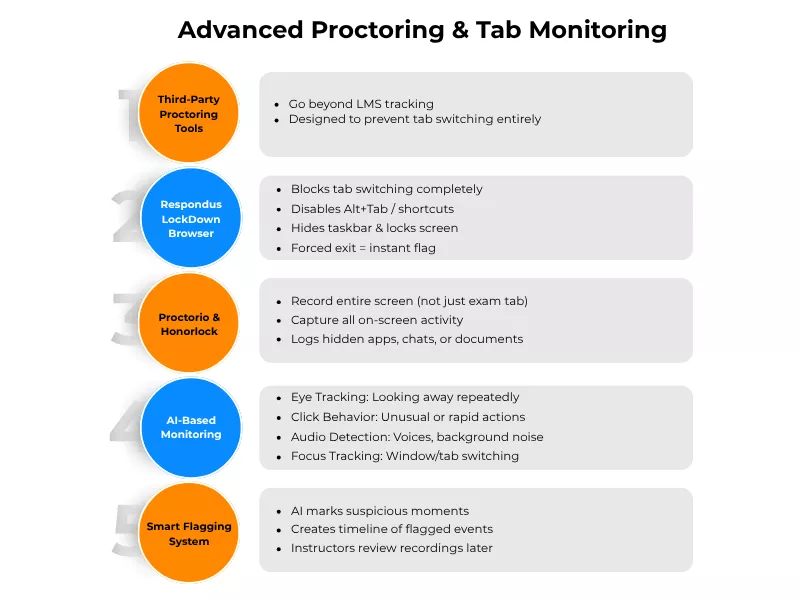
When schools want to go beyond the basic tracking features of Canvas or Moodle, they turn to specialized third-party proctoring services. These tools are far more intrusive and are designed specifically to eliminate the possibility of navigating away from the test.
Learning about how these actually work and prevent cheating beforehand is one of the best online exam preperation strategies.
Can Respondus LockDown Browser Detect Tab Switching?
Respondus LockDown Browser doesn’t just “detect” tab switching; it physically prevents it.
Unlike a standard browser like Chrome or Safari, Respondus is a custom application that takes full control of your computer. Once you launch a test inside this environment, your taskbar is hidden, and your keyboard shortcuts (like Alt-Tab or Command-Tab) are disabled. Therefore, you cannot cheat on Respondus LockDown Browser.
You are essentially trapped within the exam page until you submit your work. If you find a way to force the window to close or minimize, the system immediately flags the attempt and often locks the student out of the exam entirely.
Can Proctorio and Honorlock See Your Entire Desktop?
Yes. Services like Proctorio and Honorlock typically function as browser extensions or small software downloads that require permission to “record your screen.”
This means they aren’t just looking at the specific tab where the test is located; they are capturing every single pixel on your monitor.
If you open a hidden document, pull up a chat window, or even hover your mouse over a different application, the software records that visual evidence. These recordings are then saved for your instructor to review later if the system identifies any suspicious movement.
How Proctored Exams Use AI to Flag Abnormal Browser Behavior
Most students worry about a human proctor watching them live, but in reality, it is usually an Artificial Intelligence (AI) doing the initial monitoring. The AI looks for patterns that deviate from “normal” testing behavior. This includes:
- Eye Tracking: If your eyes constantly leave the screen to look at a specific spot (like a hidden phone or notes).
- Click Patterns: Extremely fast navigation or clicking in areas where there are no buttons.
- Audio Spikes: Detecting the sound of someone else talking or the rustle of paper.
- Navigation Logs: Flagging the exact millisecond the exam window loses focus.
When the AI detects these behaviors, it creates a “flag” on a timeline. Your teacher can then jump directly to those specific moments in the video recording to decide if you were actually cheating or just stretching your neck.
Risks and Realities: What Happens If You Get Caught?
Understanding the technology is only half the battle; knowing the consequences is what really matters. While the digital world feels private, the data trails left behind can have long-lasting effects on your academic career.
What Happens if You Accidentally Switch Tabs During an Online Exam?
We’ve all been there: a stray desktop notification pops up, or you accidentally click a link while trying to highlight a question. If you are in a standard browser environment (like a basic Canvas quiz), an accidental tab switch will generate a log entry.
If this happens, don’t panic. A single, brief “exit” from the quiz window usually won’t result in an immediate failure. However, it is a good idea to notify your instructor immediately after the exam. Sending a quick email explaining that a pop-up caused a momentary window switch shows transparency. Most professors are understanding of technical glitches if they only happen once.
Does Switching Tabs on Canvas Get You Caught Every Time?
The honest answer is: it depends on your teacher. While Canvas records every time you stop viewing the quiz, it doesn’t automatically fail you. The system simply provides the data to the instructor.
In a large lecture class with 500 students, a professor might only check the logs of students who finished the exam suspiciously fast or got a perfect score. However, in smaller, more rigorous programs, instructors may review the logs of every student as a standard procedure. The data is always there, waiting to be seen; it just depends on whether the instructor chooses to look at it.
Understanding Academic Integrity Flags in Online Education
In the world of online proctoring, “flagging” is the most common term you’ll hear. A flag is not an automatic accusation of cheating; it is simply a digital marker that tells the instructor, “Something unusual happened at this exact timestamp.”
When a system flags your session, whether for a tab switch, a sudden noise, or your eyes leaving the screen, it creates a report. The process usually follows these steps:
- Detection: The software notices an anomaly.
- Review: The instructor or a third-party proctor watches the video or looks at the navigation log.
- Inquiry: If the behavior looks suspicious, the instructor will reach out to the student to ask for an explanation.
- Action: If the explanation isn’t satisfactory, it can lead to a zero on the assignment, an “F” in the course, or even a formal meeting with the school’s academic integrity board.
Ultimately, the “reality” is that online platforms are built to protect the value of the degree you are earning. While the tech isn’t perfect, it is sophisticated enough to make “tab hopping” a very high-risk gamble.
Frequently Asked Questions
Does MathXL see my screen?
Yes, it can see your screen. While taking the test, the computer screens are recorded. The instructor can track the suspicious behavior in real time.
Why do students look for the MathXL answer key online?
Students look for answer keys because they want good grades. However, you cannot get the answers by looking on the internet. You need to hire an expert to answer your questions.
How to pass Math online?
Take the help of friends or tutors with your assignment to solve tough questions. If that does not help, you can hire experts for accurate answers.
How much does it cost to get the correct MathXL answer?
The price is dynamic. It depends on your course structure and the